
Assets Page
Understanding the Assets Page
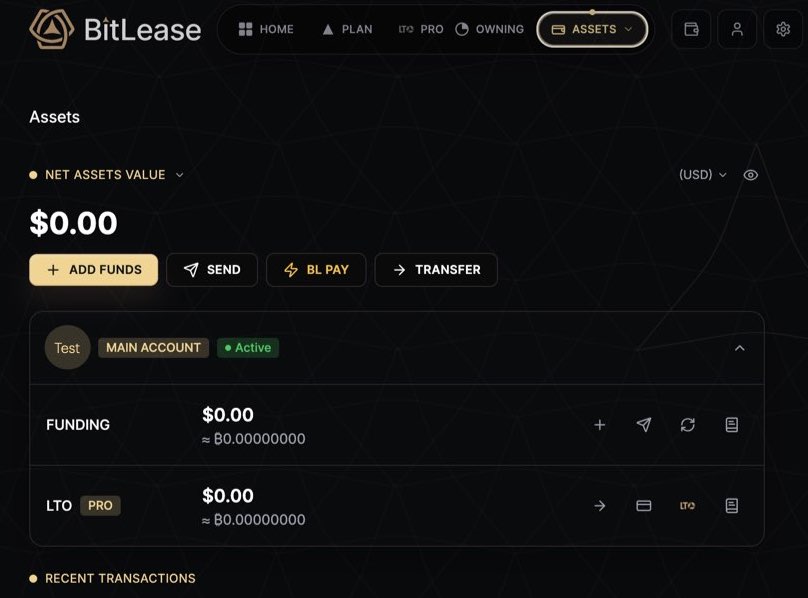
The Assets Page is your central hub for managing and tracking your holdings on BitLease. It provides a clear overview of your total account value, quick access to key actions, and a breakdown of your accounts. This page is designed to help you navigate your financial journey with ease and transparency.
What You’ll See on the Assets Page
Net Assets Value
At the top of the Assets Page, you’ll find your Net Assets Value, which represents the total value of all your holdings across accounts. This value is displayed in your selected currency (default: USD), and you can toggle between:
USD (US Dollar)
BTC (Bitcoin equivalent)
To switch between views, click the dropdown arrow next to Net Assets Value. This ensures you can monitor your portfolio in terms of both fiat and cryptocurrency.
Quick Action Buttons
Below the Net Assets Value, you’ll see four primary action buttons that allow you to manage your funds efficiently:
+ ADD FUNDS
Deposit funds into your account using on-chain transfers or BL Pay.
For detailed instructions, see How to Add Funds.SEND
Withdraw funds to external wallets or send them to other BitLease users via BL Pay.
For more details, see How to Withdraw Funds.BL PAY
Transfer funds instantly to other BitLease users within the platform.→ TRANSFER
Move funds between your accounts (e.g., from the Funding Wallet to the LTO Wallet).
For more information, see How to Transfe.r Funds
These buttons are designed for quick access to the most common financial operations.
Account Summary
The Account Summary section provides a detailed breakdown of your accounts. It is divided into two main sections:
Funding Account: Displays your liquid, operational funds.
LTO Pro Account: Shows assets tied to active Lease-to-Own (LTO) contracts.
Each account displays:
Balance: The total value in USD and its Bitcoin equivalent.
Action Icons: Quick access to specific operations for each account, such as deposits, withdrawals, and transfers.
The PRO badge next to the LTO Pro Account highlights its advanced custody features.
Recent Transactions
At the bottom of the page, you’ll find the Recent Transactions section. This area provides a snapshot of your latest account activity, including deposits, withdrawals, and transfers.
If no transactions have been made yet, you’ll see the message:
"No transactions yet."
This section helps you stay updated on your account activity at a glance.
How to Navigate the Assets Page
Accessing the Page
Navigate to the Assets section using the main menu or the wallet icon in the top-right corner of the dashboard.Switching Views
Use the dropdown arrows next to Net Assets Value and account balances to toggle between USD and BTC views.Performing Actions
Use the quick action buttons (Add Funds, Send, BL Pay, Transfer) to manage your funds directly from the page.
Key Features of the Assets Page
Centralized Overview: View your total holdings and account balances in one place.
Quick Access: Perform essential actions like deposits, withdrawals, and transfers with just a few clicks.
Customizable Display: Toggle between USD and BTC to view your portfolio in your preferred currency.
Transaction Tracking: Stay informed about your recent account activity.
Next Steps
To learn more about managing your accounts, check out these related articles:
Need Help?
If you encounter any issues while using the Assets Page, contact BitLease Support:
Email: support@bitlease.com
Subject: "Assets Page Issue"
Include: A description of the problem, any error messages, and steps you’ve already tried.
Response Time: Within 24 hours.
For urgent security concerns, email: security@bitlease.com.
This guide ensures you can confidently navigate and utilize the Assets Page to manage your holdings effectively.