
Understanding Your Dashboard
Why This Matters
Your dashboard is the central hub for managing your entire BitLease experience. It provides a clear, organized view of your assets, Lease-to-Own (LTO) contracts, and next steps—all in one place. Familiarizing yourself with the dashboard layout will help you navigate the platform with ease and confidence.
This guide breaks down each section of the interface so you can quickly find what you need.
Main Navigation Overview
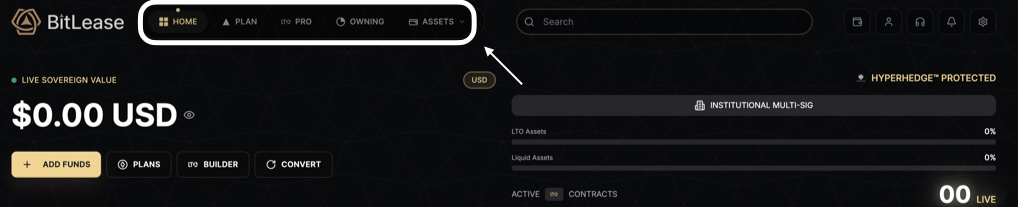
When you log in, you’ll see a navigation bar at the top of the screen. This is your primary tool for accessing the core areas of BitLease. The navigation bar includes five main sections:
HOME: Your central dashboard, offering an overview of your total value, active contracts, and quick access to key actions.
PLAN: Explore Fixed LTO packages with predefined terms, down payments, and APRs.
PRO: Access advanced tools like the Desk (live market data) and the Deal Builder for creating custom LTO contracts.
OWNING: Manage your active LTO contracts, track progress, and monitor your ownership portfolio.
ASSETS: Manage your wallets, including deposits, withdrawals, conversions, and transfers.
On the right side of the navigation bar, you’ll also find icons for search, notifications, your profile, and settings.
HOME: Your Dashboard at a Glance
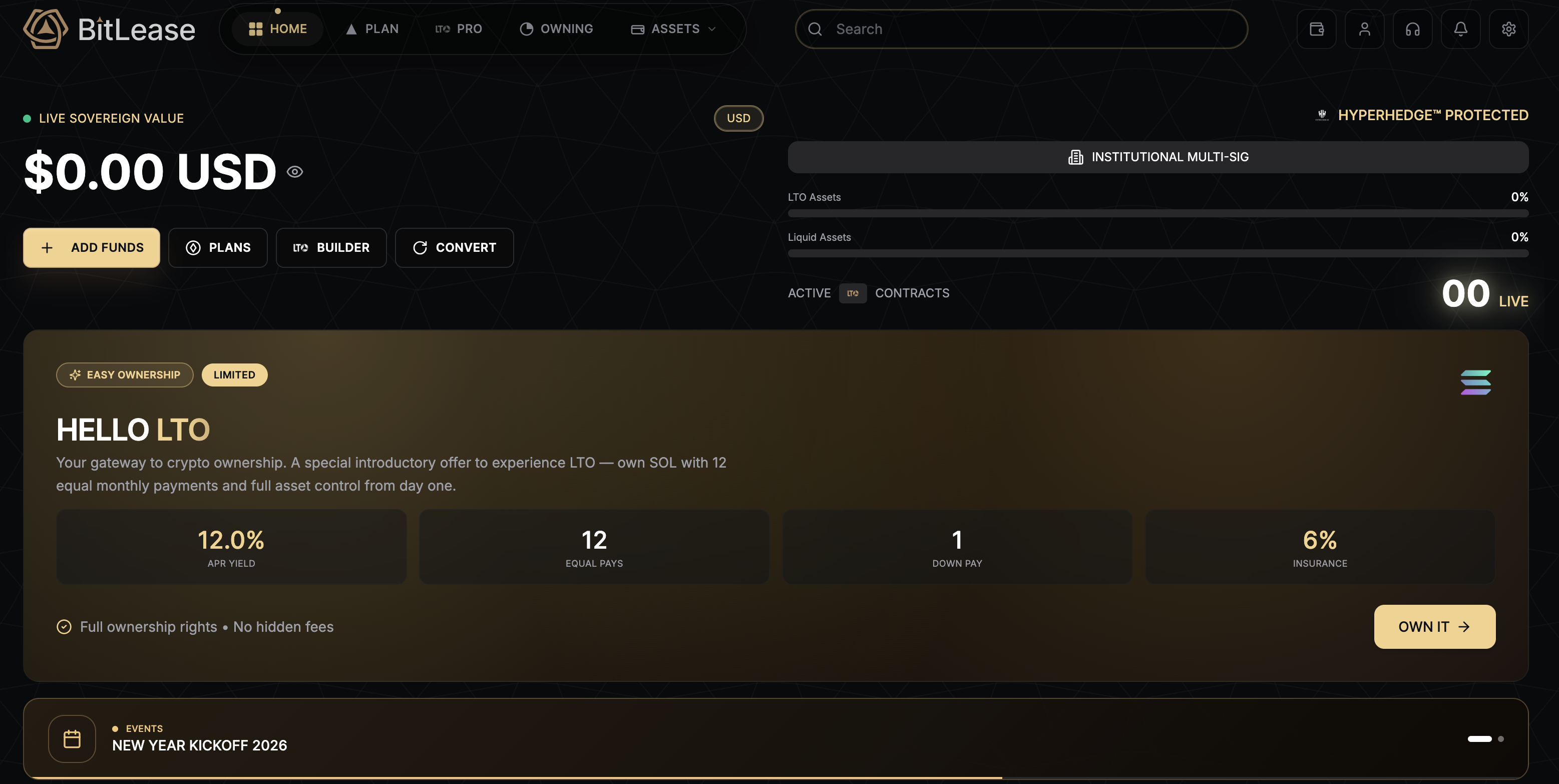
The HOME section is the first screen you see after logging in. It provides a snapshot of your overall position.
Live Sovereign Value: Displays your total asset value in real time, with an option to toggle the display currency (default: BTC) and hide the balance for privacy.
HyperHedge Protection: Confirms that your assets and contracts are secured under the HyperHedge solvency framework and Institutional-Grade MPC custody.
Asset Distribution: Progress bars show the split between LTO Assets (in active contracts) and Liquid Assets (available in your Funding Wallet).
Active LTO Contracts: A live counter displays the number of active contracts. If none, it shows "00 LIVE."
Quick Action Buttons: Access common tasks like adding funds, browsing plans, building custom LTO contracts, or converting assets.
Hello LTO: A promotional section highlighting low-entry introductory offers with key terms like APR, payment schedule, and down payment.
Events: A banner at the bottom highlights platform updates or announcements.
PLAN: Explore Fixed LTO Packages
The PLAN section is where you browse Fixed LTO packages, which are pre-structured ownership plans with set terms.
Featured Plans: Highlighted packages marked as "Most Popular" with details like APR, term length, and down payment percentage.
All Plans View: Browse the full list of packages, including options like Standard, Short Term, Long Term, and more.
Filters and View Modes: Narrow your search with filters for Low Entry, High Yield, or Long Term plans. Toggle between list, chart, or grid views.
LTO Calculator: Estimate the cost of an LTO contract by inputting asset details, payment intervals, and down payment percentages.
Starting a Plan: Review plan details, adjust quantities, and see a full cost breakdown before signing the deal. If your wallet balance is insufficient, the platform will notify you of the additional funds needed.
PRO: Advanced Tools for Custom Contracts
The PRO section is designed for users who want full control over their LTO contracts. It includes two key areas:
Desk: Provides live market data, including sentiment, volatility, and liquidity indicators. A Capital Engine section shows platform yield and spread, while an asset list displays current prices and percentage changes.
Deal Builder: Create custom LTO contracts with parameters like order type (Market or Limit), asset selection, down payment percentage, repayment schedule, and contract duration. Once configured, you can review and sign the deal.
OWNING: Manage Your Ownership Portfolio
The OWNING section is your go-to area for tracking and managing active LTO contracts.
My Ownership Pad: Displays the total number of active contracts and allows you to toggle balance visibility.
Total Assets Value: Shows the combined value of all assets under ownership contracts, with percentage change indicators.
Key Metrics: Provides a snapshot of your equity, contract progress, and any earned yield.
Search and Add: Quickly find specific assets or start new contracts through the PLAN or PRO sections.
Payment Liabilities: Displays upcoming payment obligations or, if no contracts are active, a prompt to create a new LTO position.
ASSETS: Wallet and Fund Management
The ASSETS section is where you manage your wallets and funds. It’s divided into two core wallet types:
Funding Wallet: Holds liquid assets for deposits, withdrawals, conversions, and payments.
LTO Wallet: Contains assets tied to active LTO contracts. Locked assets cannot be withdrawn until the contract is completed, but free assets (e.g., surplus from settlements) can be transferred back to the Funding Wallet.
Additional features include:
Net Assets Value: Displays your total net asset value with currency toggle and balance visibility options.
Quick Action Buttons: Access common operations like adding funds, sending payments, or transferring assets.
Recent Transactions: View your latest activity or access a full transaction history with filters for deposits and withdrawals.
Withdraw Funds: Initiate withdrawals via OnChain or BL Pay. If no assets are available, the platform will notify you.
How the Sections Work Together
The dashboard’s five sections are interconnected, creating a seamless workflow:
Add funds through ASSETS.
Select a Fixed LTO package in PLAN or build a custom contract in PRO.
Once activated, the asset moves to your LTO Wallet in ASSETS, and the contract appears in OWNING.
The HOME screen consolidates all this information into a single, easy-to-read overview.
Funds flow logically: deposits enter the Funding Wallet, down payments move to the LTO Wallet when a contract activates, and completed assets return to the Funding Wallet as free assets.