A Tour of the BitLease Platform
A tour of your Home screen
Your Home screen is the first thing you see after logging in. It brings together your total asset value, quick actions, current promotions, and your Settlement Center, so you always know where you stand.
What's on the Home screen
Top bar — a search field ("Search assets, plans..."), a headphones icon for Contact Support, a bell icon for notifications, and your avatar in the top-left, which opens your account/profile screen.
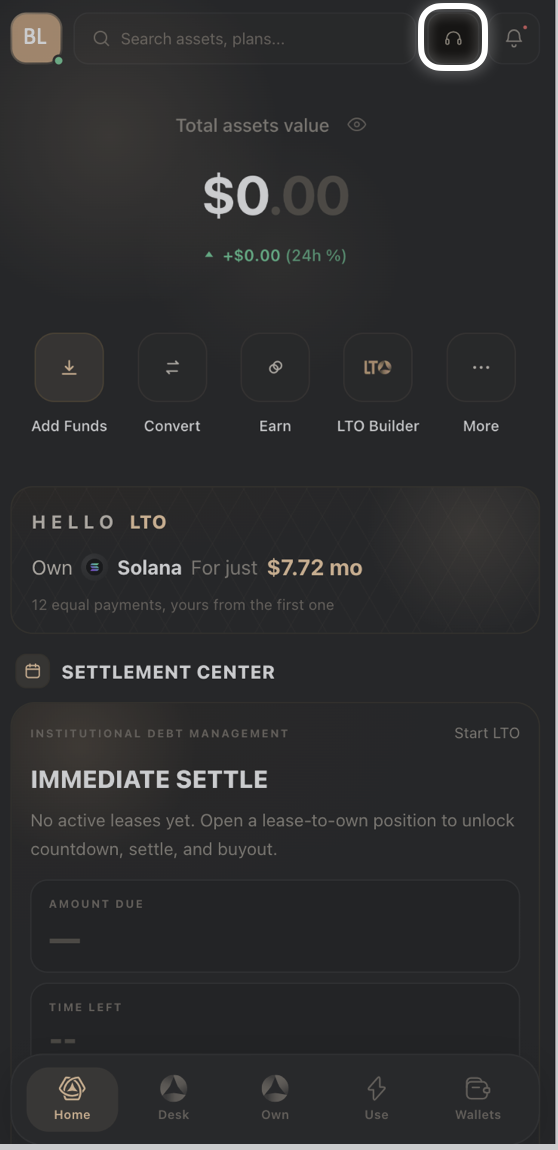
Total assets value — your combined balance across the platform, with an eye icon to hide or show the figure at a glance.
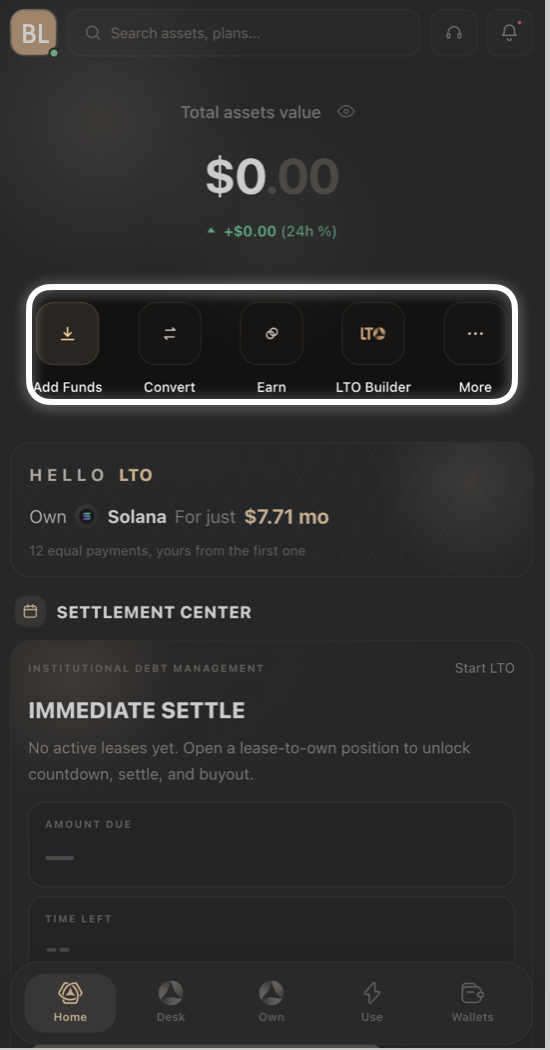
Quick actions — Add Funds, Convert, Earn, LTO Builder, and More, for jumping straight into the platform's core actions.
Promotional banner — curated offers such as a featured asset and its estimated monthly LTO payment. These are informational starting points, not recommendations to purchase any specific asset.
Settlement Center — shows Immediate Settle, with Amount Due and Time Left once you have an active lease. If you don't have one yet, it prompts you to Start LTO.
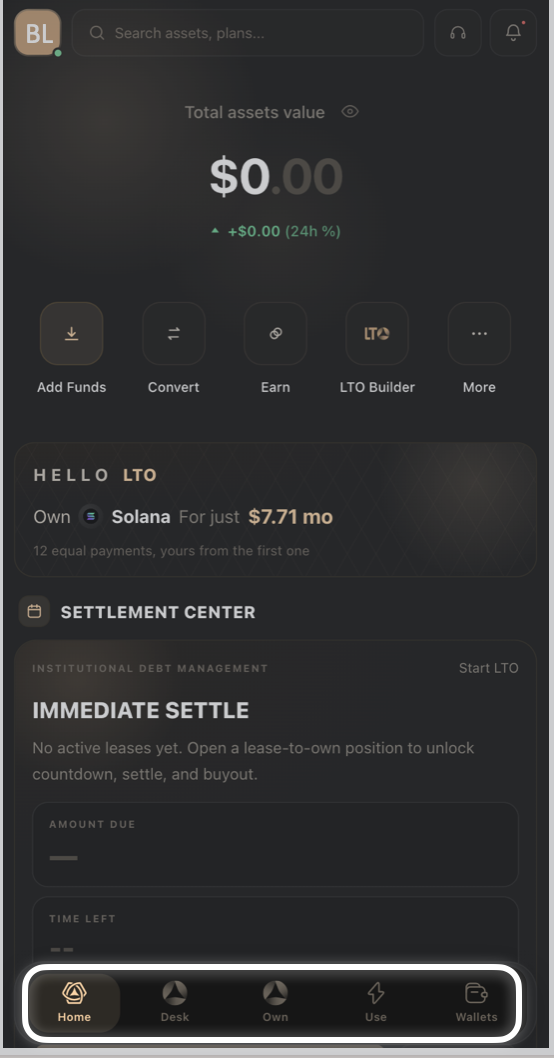
Bottom navigation — Home, Desk, Own, Use, and Wallets, for moving between the platform's main areas.
Good to know:
Tapping your avatar opens your profile screen, which shows your account email, UID, and a User Center button for managing your identity verification, fee rates, and documents.
The Home screen updates in real time as prices move and as your contracts progress.
Need Help?
If you encounter issues during account creation, contact BitLease Support:
Email: support@bitlease.com
Subject: "Account Creation Issue."
Include: A description of the problem, any error messages, and steps you've already tried.
Response Time: Within 24 hours.
For urgent security concerns, email: security@bitlease.com.Related articles: How to Create Your Account · Managing your profile & account details · Building your first lease with LTO Builder