A Tour of the Own Tab
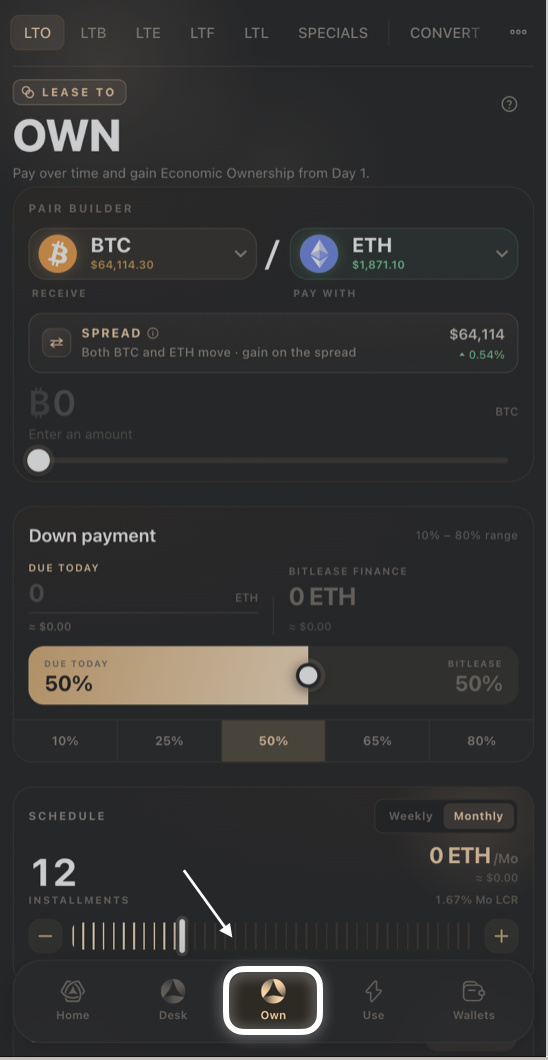
Tap Own in the bottom navigation to get here from anywhere in the app. The top tab bar lets you switch between builders instantly — your inputs on one builder are remembered while you look at another.
What the tabs mean
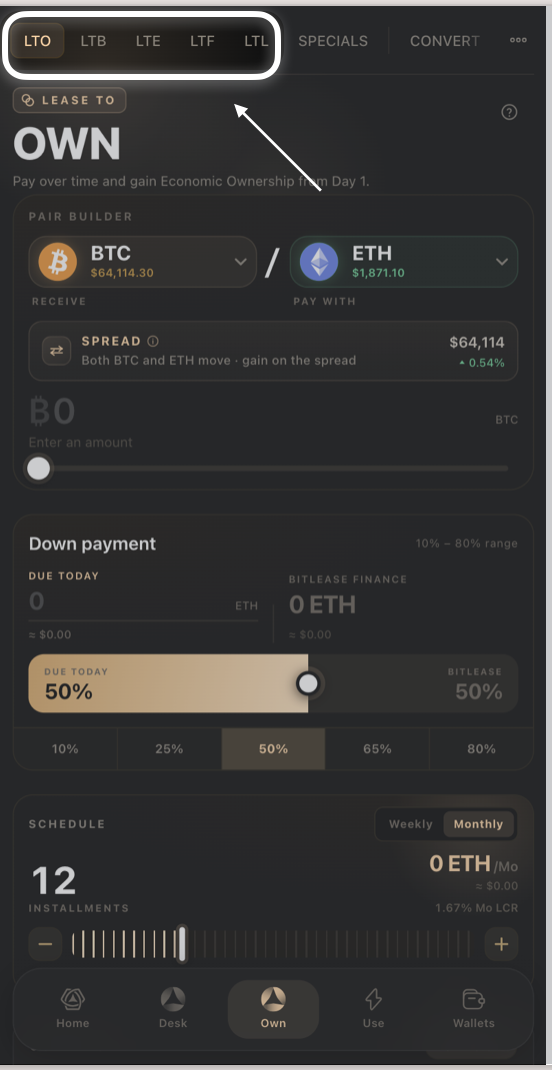
LTO — Lease to Own. Pay over time and gain economic ownership from day one. The classic BitLease product.
LTB — Lease to Bundle. Finance multiple assets at once, in a single basket, with one payment schedule.
LTE — Lease to Elect. Reserve several possible assets now and elect which one you actually want within a window.
LTF — Lease to Forward. Lock today's price and terms, and settle on a future date — a conditional forward sale.
LTL — Lease to Liquidity. Unlock cash from an asset you already own, with a plan to buy it back over time.
Specials — pre-negotiated deals the standard builders can't produce, released in limited drops.
Convert — instant, zero-fee transfers between your Funding Wallet and each product's dedicated wallet (LTO, LTU, LTE, LTB, LTF, LTL).
What every builder has in common
A "LEASE TO" badge and large product name at the top, with a (?) help icon in the top-right corner.
A down payment or investment-amount slider, usually with quick-pick percentage or amount buttons underneath.
A schedule or window control (installments, election window, or delivery window) with quick-pick presets.
A Deal Recap or Contract card showing the headline numbers, with a Full Breakdown / Breakdown you can expand for the exact fee-by-fee math.
A HyperHedge Audit indicator with a Report link, shown just above the final action button.
A final action button — Preview & Sign Deal, Preview & Sign Forward, or Review & Sign LTL — that opens a confirmation screen before anything is submitted.
A ledger section at the bottom (Your Leases, Your Forwards, Your LTL Contracts) showing your open positions and a link to the full ledger.
Good to know:
Nothing is submitted until you confirm on the Preview & Sign screen — building a deal on any tab doesn't commit you to anything.
Numbers shown while you're still adjusting sliders are estimates; they're recalculated the moment you tap Preview.
Need Help?
If you encounter issues during account creation, contact BitLease Support:
Email: support@bitlease.com
Subject: "Own Tab Navigation Issue"
Include: A description of the problem, any error messages, and steps you've already tried.
Response Time: Within 24 hours.
For urgent security concerns, email: security@bitlease.com.
Related articles: How to Build an LTO (Lease-to-Own) · How to Build an LTB (Lease-to-Bundle) · Converting Between Wallets